
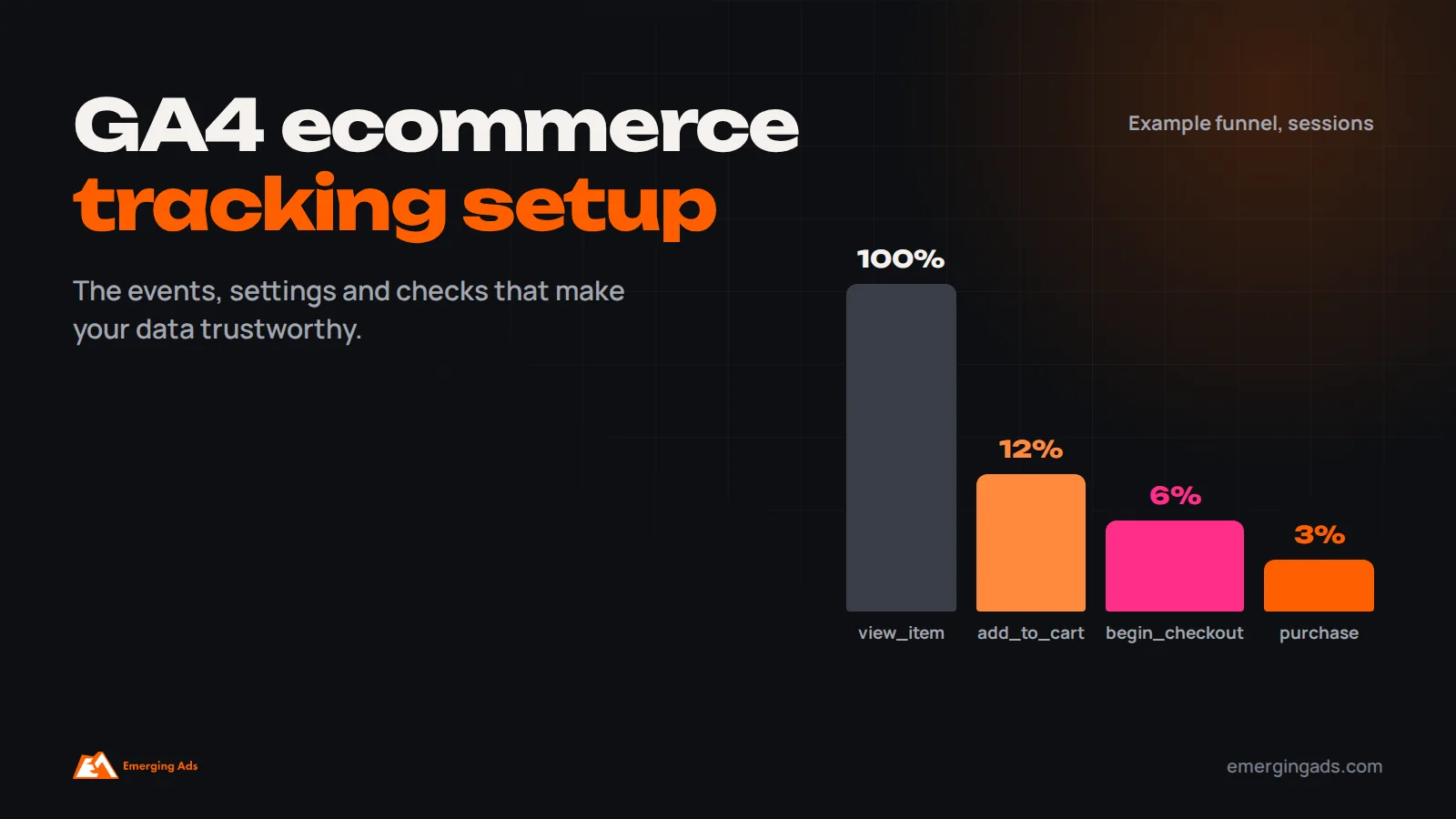
The short answer
To set up GA4 ecommerce tracking properly, send Google’s recommended ecommerce events, from view_item through add_to_cart, begin_checkout and purchase, with a complete items array, value, currency and a unique transaction_id. On Shopify, use the Google and YouTube app or a custom pixel through Customer Events; on other platforms, use Google Tag Manager with a data layer. Then mark purchase as a key event, set data retention to the maximum, exclude payment gateways as referrals, configure consent mode where required, and check GA4 revenue against your store every month.
Google Analytics 4 is the analytics tool most online stores rely on, and one of the most commonly misconfigured. In the stores we audit, we regularly find purchases counted twice, revenue missing tax or counted in the wrong currency, checkout steps that never fire, and sales attributed to PayPal or Stripe instead of the campaign that actually brought the customer.
Bad analytics data causes bad decisions. Budgets move to channels that look good only because of a tracking error. Landing pages get redesigned to fix a drop-off that does not exist. And when GA4 conversions are imported into Google Ads, a tracking mistake becomes a bidding mistake that costs money every day.
This guide covers how GA4 ecommerce tracking should be set up in 2026, platform by platform, the settings most stores miss, and how to check the data is right. It is written for store owners and marketers rather than developers, but it is specific enough to hand to a developer as a checklist.
What GA4 ecommerce tracking actually measures
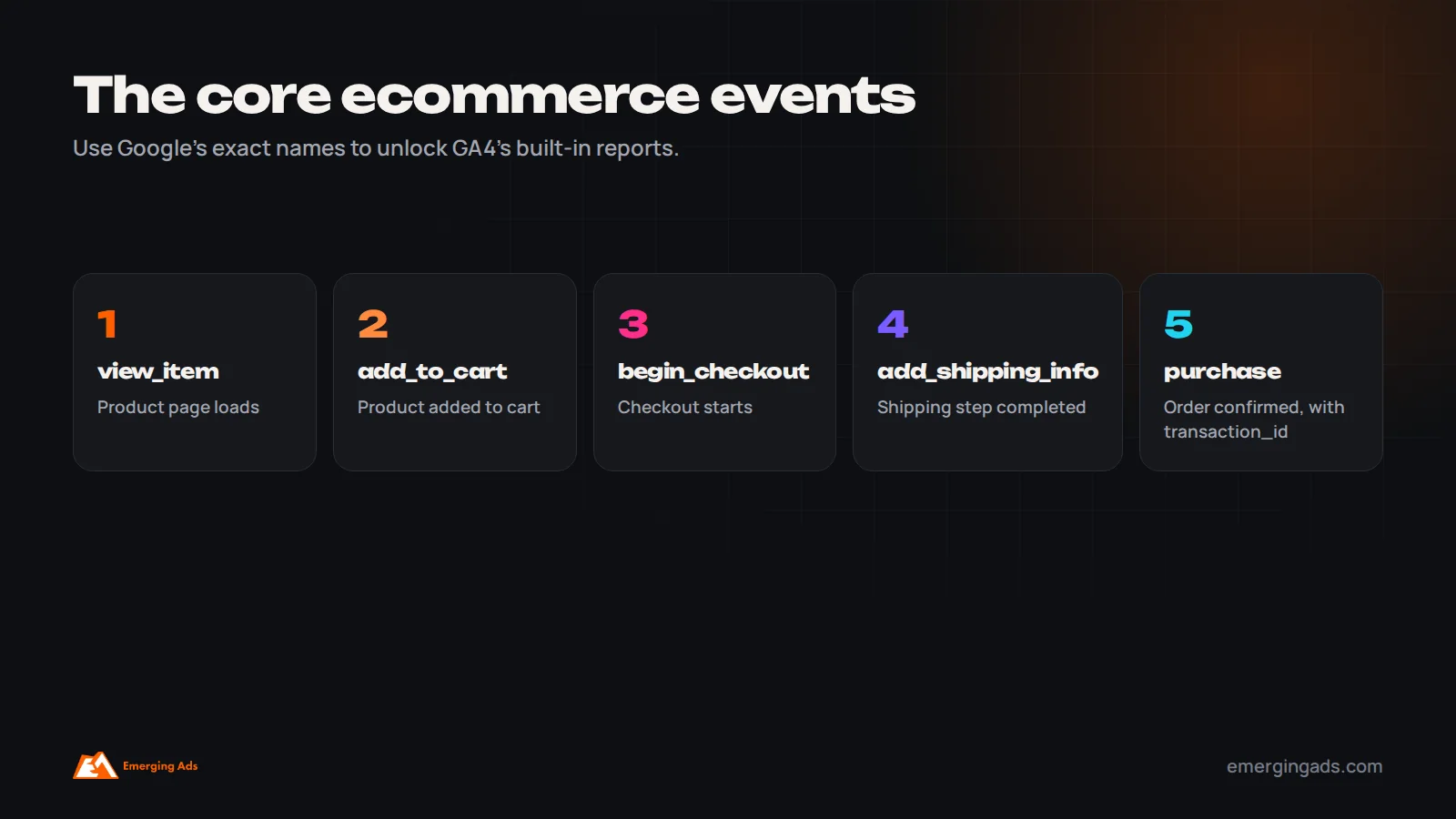
GA4 is built around events. Every interaction, from viewing a page to completing a purchase, is recorded as an event with parameters attached. For ecommerce, Google defines a set of recommended events with specific names and parameters. Using those exact names is what unlocks GA4’s built-in ecommerce reports, such as the purchase journey, checkout journey and item performance reports.
When set up properly, GA4 can answer questions like: which products are viewed most but bought least, where shoppers drop out of checkout, which traffic sources bring buyers rather than browsers, how much revenue each product category produces, and how campaigns compare on actual sales.
The recommended ecommerce events
These are the core events we set up on every store, in the order a shopper typically triggers them:
| Event | When it fires | Why it matters |
|---|---|---|
| view_item_list | A category or collection page loads | Shows which lists drive product views |
| select_item | A product is clicked from a list | Measures list click-through |
| view_item | A product page loads | Start of the product funnel |
| add_to_cart | A product is added to cart | Key intent signal |
| view_cart | The cart page or drawer opens | Cart engagement |
| remove_from_cart | A product is removed | Spot pricing or shipping friction |
| begin_checkout | Checkout starts | Start of the checkout funnel |
| add_shipping_info | Shipping details are submitted | Shipping cost drop-off |
| add_payment_info | Payment details are submitted | Payment step drop-off |
| purchase | The order is confirmed | Revenue and conversions |
| refund | An order is refunded | Accurate net revenue |
GA4 also offers promotion events, view_promotion and select_promotion, for tracking internal banners and featured offers. They are optional, but useful if you want to know whether homepage banners actually lead to sales.
Not every store needs every event on day one. If you have to prioritize, get purchase perfectly right first, then view_item, add_to_cart and begin_checkout, then the rest.
The parameters that make the data useful
Event names alone are not enough. Each ecommerce event should carry parameters, and missing or inconsistent parameters are the most common cause of broken reports.
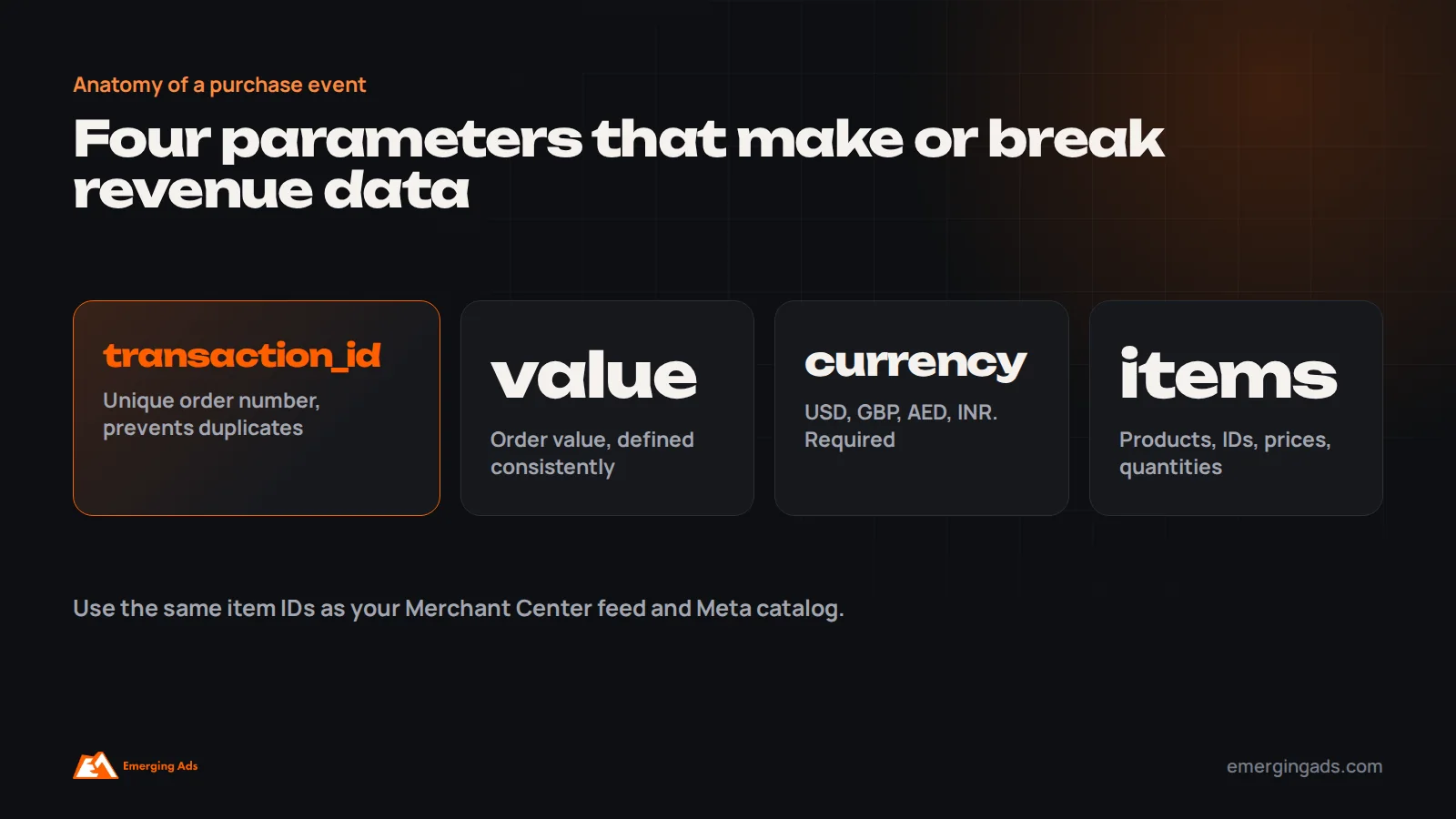
- items: an array describing each product, including item_id, item_name, price, quantity and ideally item_brand, item_category and item_variant. Without it, product reports stay empty.
- value: the monetary value of the event. For purchase, decide whether this includes tax and shipping, and apply the decision consistently everywhere.
- currency: a three-letter currency code such as USD, GBP, AED or INR. Without currency, GA4 may ignore the value entirely.
- transaction_id: the unique order number on purchase events. GA4 uses it to deduplicate, so a customer refreshing the thank-you page does not create a second purchase.
- coupon, shipping and tax: optional on purchase, but useful for understanding discounts and true revenue.
Use the same item_id that appears in your Google Merchant Center feed and Meta catalog. Consistent IDs across platforms make it far easier to compare product performance and to use GA4 data in Google Ads.
Setting up GA4 on Shopify
Shopify has changed how tracking works over the past two years. Shopify’s checkout extensibility upgrade replaced the old checkout.liquid customization, and scripts that used to run on checkout and thank-you pages through additional scripts no longer work on upgraded stores. Tracking now runs through Shopify’s Customer Events, using app pixels or custom pixels.
For most Shopify stores, there are two sensible options:
- The Google and YouTube app. Shopify’s official app connects GA4 and sends standard ecommerce events, including purchase, without custom code. It is the simplest route and the right start for most stores.
- A custom pixel through Customer Events. For more control, such as custom parameters, a server-side setup or sending events to several tools, a developer can build a custom pixel that subscribes to Shopify’s standard events and forwards them to GA4 or Google Tag Manager.
The common mistake on Shopify is running both at once, or leaving an old hard-coded GA4 tag in the theme alongside the app. That double-counts page views and sometimes purchases. Pick one method, remove the others, and test. If you are setting up a new store, our Shopify store setup team includes tracking from the start.
Setting up GA4 on WooCommerce and other platforms
On WooCommerce, Magento, BigCommerce and custom sites, the most reliable approach is Google Tag Manager plus a data layer. The site pushes ecommerce data, such as products viewed, cart contents and order details, into a data layer in the format Google expects. Tag Manager then reads it and sends the GA4 events.
Many platforms have plugins or extensions that create the data layer for you. Check that the plugin you choose outputs GA4’s recommended event names and the items array, not the older Universal Analytics format, which some outdated plugins still use.
Avoid sending purchase events only from the browser if you can. Ad blockers and closed tabs mean some thank-you page loads never happen. Server-side tagging or platform integrations that send purchases from the server recover a share of those missing orders, at the cost of more setup.
GA4 settings most stores forget
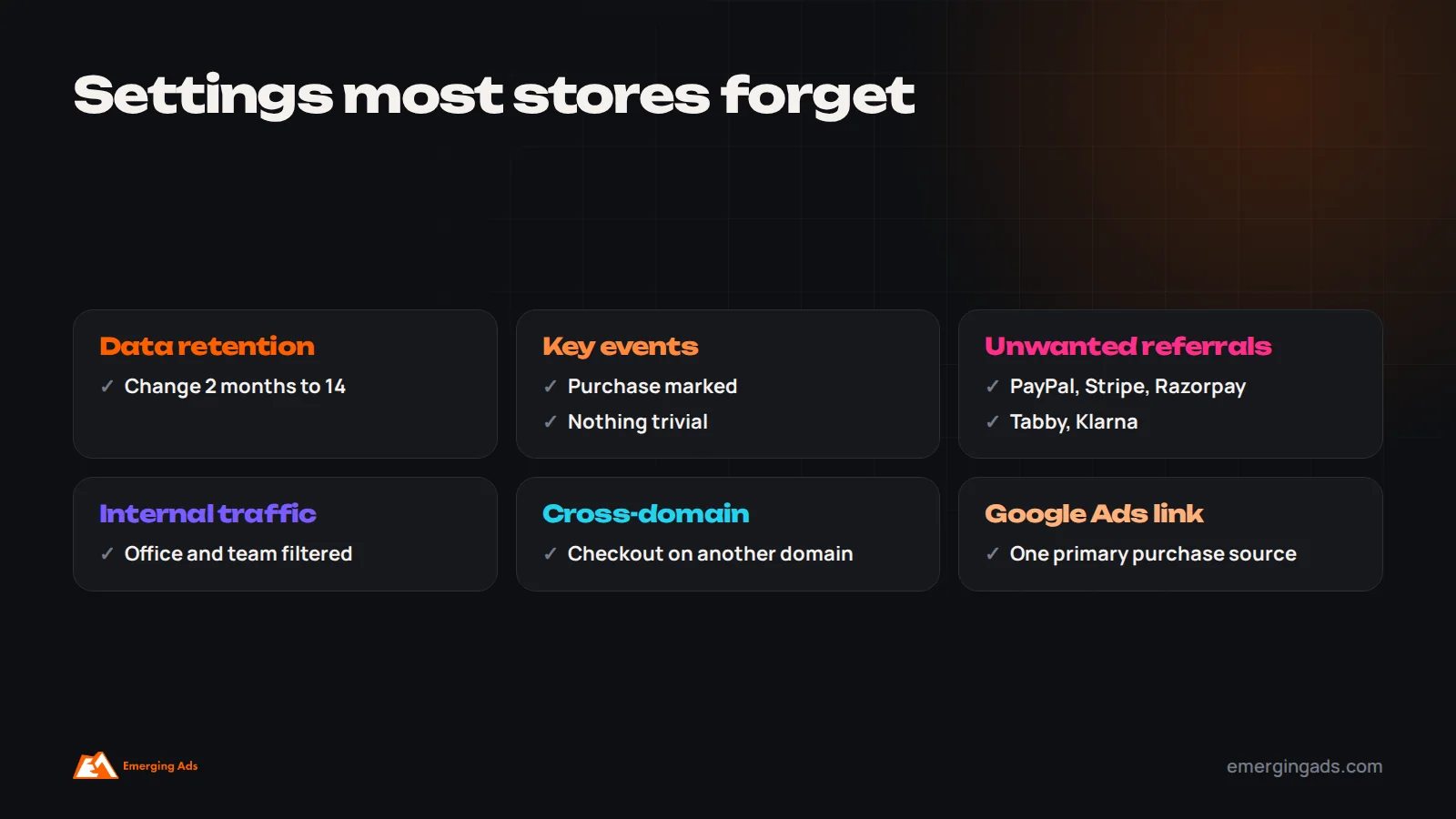
Even with perfect event tracking, a handful of property settings quietly distort data. We check these on every audit:
- Data retention. GA4 defaults to keeping detailed event data for two months. Set it to 14 months under Admin, Data collection and modification, Data retention, so exploration reports can look back properly.
- Key events. Mark purchase as a key event (GA4’s term for what it used to call conversions). Add other key events only if they truly matter, such as a lead form for stores that also sell B2B.
- Unwanted referrals. Add payment providers such as PayPal, Stripe, Razorpay, Tabby or Klarna to the unwanted referrals list. Otherwise, when a customer returns from the payment page, GA4 credits the sale to the payment provider rather than the original source.
- Internal traffic. Define and filter your own office and team traffic so staff test orders and browsing do not inflate results.
- Cross-domain tracking. If checkout or booking happens on a different domain, configure cross-domain measurement so sessions are not split.
- Currency and time zone. Set the reporting currency and time zone to match the store, so GA4 and store reports line up by day.
- Google Ads link. Link GA4 to Google Ads and, if you import GA4 conversions, make sure they are not also being counted by a separate Google Ads tag for the same action.
Consent mode and privacy
If you have visitors from the UK, the European Economic Area or other regions with strict consent rules, you need a consent banner, and Google requires consent mode to be implemented for advertisers using its measurement and advertising features with EEA users. Consent mode tells Google tags whether a visitor accepted analytics and advertising cookies, and adjusts what is collected.
With advanced consent mode, Google can model some of the conversions from visitors who declined cookies, which reduces the data gap. Whatever you implement, make sure the banner and consent mode are actually connected. We often find stores with a consent banner that has no effect on tags at all, or tags that do not fire even after consent is given.
Data protection rules also apply in other markets, including India’s data protection law and rules in the UAE and Saudi Arabia, so check what applies to the markets you sell into.
How to test that tracking works
Never assume tracking works because a plugin says it is installed. Test it.
- Open GA4’s DebugView, and enable debug mode using Tag Assistant or a browser extension.
- Walk through a full journey: browse a category, open a product, add to cart, view the cart, start checkout, enter shipping and payment, and complete a real or test order.
- Check each event appears once, in order, with the items array, value and currency filled in.
- Confirm the purchase shows the correct order number as transaction_id and the right revenue.
- Refresh the thank-you page and confirm no second purchase is recorded.
- Repeat on mobile and with a discount code applied.
After launch, wait a couple of days and check the standard ecommerce reports for gaps, such as products with views but no names, or purchases with no revenue.
Why GA4 revenue never exactly matches your store
Even a perfect setup will not match your store’s sales reports to the cent. Ad blockers, declined cookies, browser restrictions, cancelled and refunded orders, time zone differences and orders placed by phone or in person all create gaps.
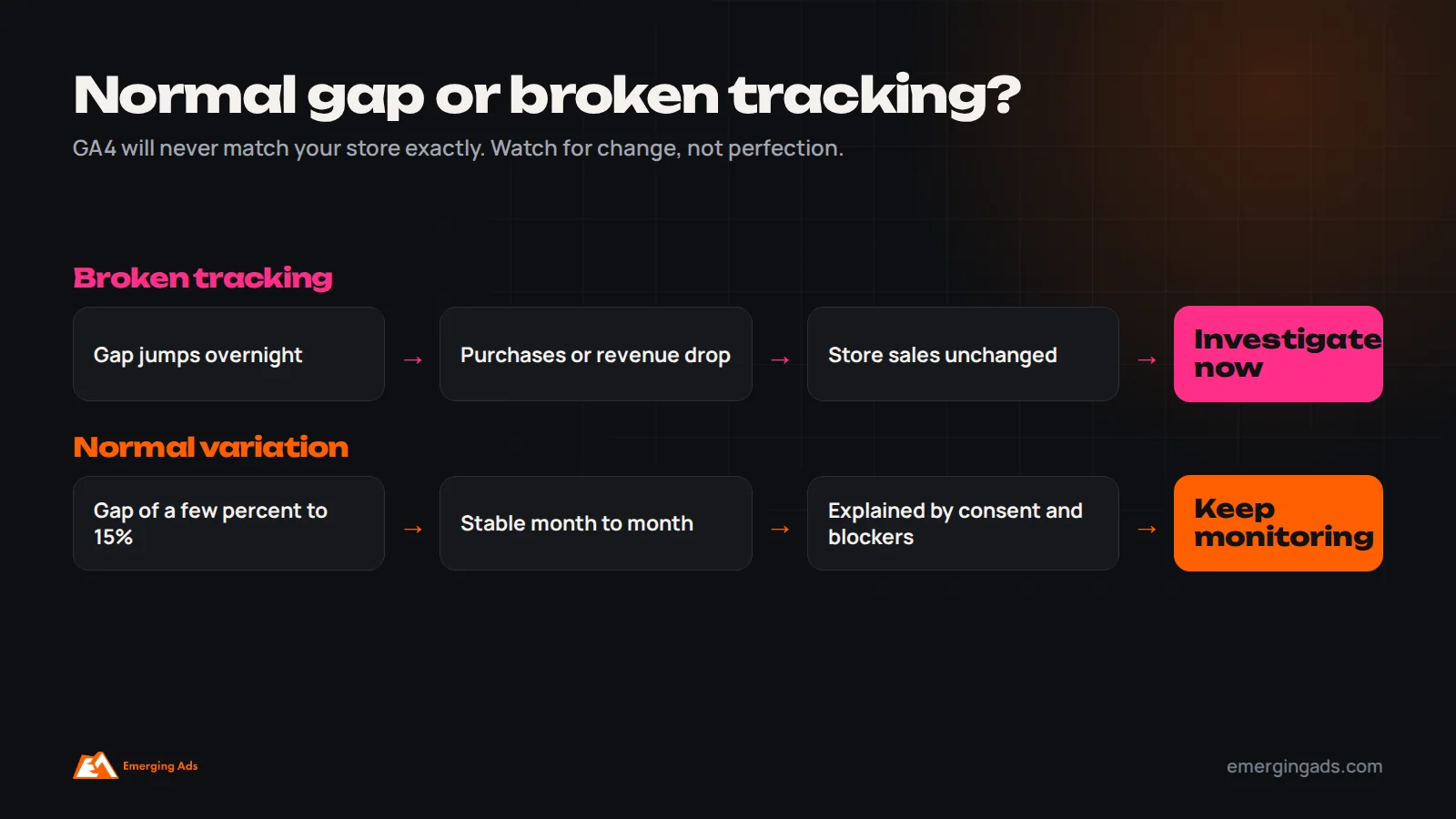
The goal is consistency, not perfection. Compare GA4 purchase revenue with store revenue every month. In our experience a gap of a few percent up to around 10 to 15% is common, depending on audience and consent rates. What matters is that the gap is stable. A sudden change, such as GA4 revenue dropping 30% overnight while store sales hold steady, almost always means tracking broke.
Using GA4 data with Google Ads and Meta
GA4 can share conversions and audiences with Google Ads. Importing GA4 purchases into Google Ads is convenient, but many advertisers prefer the native Google Ads conversion tag with enhanced conversions for bidding, using GA4 for analysis. Whichever you choose, make sure only one source is set as the primary purchase conversion in Google Ads, or bidding will see duplicate conversions.
GA4 audiences, such as cart abandoners, past purchasers or visitors who viewed a category, can be shared with Google Ads for remarketing and as audience signals in Performance Max. Meta does not use GA4 data directly; it relies on the Meta pixel and Conversions API, covered in our guide to Meta pixel tracking setup costs.
GA4’s own attribution uses a data-driven model by default, which spreads credit across touchpoints. It will rarely agree with what Google Ads or Meta report for themselves. That is expected. Our article on attribution modeling costs covers when it is worth investing in more advanced measurement.
The GA4 reports worth checking every month
- Ecommerce purchases: item views, add-to-carts and purchases by product, which shows products that attract interest but do not sell.
- Purchase journey: drop-off between session start, product view, add to cart, checkout and purchase, split by device.
- Checkout journey: drop-off between checkout steps, which often reveals shipping cost or payment problems.
- Traffic acquisition: sessions, purchases and revenue by channel and campaign.
- Landing pages: which entry pages lead to purchases, useful for paid landing page decisions.
Set aside half an hour each month for these. The trends matter more than any single number, so compare each month with the previous one and with the same month last year.
A large drop between begin_checkout and add_shipping_info is one of the most useful signals in ecommerce. It usually means shipping costs or delivery times surprised customers, and it is often cheaper to fix than any ad problem. Our explainer on conversion rate optimization covers how to act on what these reports show.
Is server-side tracking worth it?
Server-side tagging moves part of your tracking from the visitor’s browser to a server you control, usually a Google Tag Manager server container. Instead of the browser sending data directly to Google, Meta and other tools, it sends one stream to your server, which then forwards it.
The benefits are real but often overstated. Server-side setups can recover some events lost to browser restrictions and ad blockers, give you more control over what data leaves your site, improve page speed by reducing third-party scripts, and make it easier to send the same purchase data to several platforms consistently. They do not bypass consent: if a visitor declines tracking, a compliant server-side setup must respect that.
The costs are setup time, ongoing hosting fees for the server container and the need for someone technical to maintain it. For stores with meaningful ad spend, where a few percent more measured conversions improves bidding across Google and Meta, it usually pays back. For a small store spending little on ads, a clean browser-based setup is enough.
Tracking more than purchases
Some of the most useful insights come from events beyond the standard funnel. Depending on the store, consider tracking site search terms, which GA4’s enhanced measurement can capture automatically and which show what shoppers cannot find; newsletter and back-in-stock signups as secondary events; wishlist additions; size guide or product video interactions; and, for stores that also sell to businesses, quote or wholesale enquiry forms as separate key events. Keep naming consistent and document each event, so the setup stays understandable as the team changes.
If your site needs development work to support cleaner tracking, our website design and development team builds analytics requirements into every project rather than adding them afterwards.
BigQuery export: when it is worth it
GA4 can export raw event data to Google BigQuery. The standard export is available to all GA4 properties, with BigQuery charges based on usage. For most small stores, the GA4 interface is enough. BigQuery becomes valuable when you need to keep detailed data beyond GA4’s retention limit, join analytics with CRM or store data, or run analysis that GA4’s interface cannot do. It is worth switching on early even if you do not use it yet, because the export only includes data from the day it is enabled.
The most common GA4 ecommerce mistakes
- Duplicate tags from an old theme installation and an app, double-counting purchases.
- Missing currency, so revenue is ignored.
- No transaction_id, so thank-you page refreshes create extra purchases.
- Payment providers not excluded as referrals, so sales are credited to PayPal or Stripe.
- Data retention left at two months.
- Old Universal Analytics style events still being sent by an outdated plugin.
- Consent banner not connected to tags.
- No monthly comparison with store revenue, so broken tracking goes unnoticed for weeks.
A one-hour GA4 ecommerce audit
If you do not have time for a full review, these checks catch most problems:
- Compare last month’s GA4 purchases and revenue with the store’s orders and revenue.
- Check the traffic acquisition report for payment providers appearing as referral sources.
- Open DebugView and run one test journey through to purchase.
- Check data retention and key event settings.
- Look at the item report for missing product names or IDs.
- Check Google Ads for duplicate primary purchase conversions.
If you would rather have it checked for you, tracking is the first thing we review in every Google Ads audit and in our wider ecommerce marketing work. Clean tracking is also step zero in our guide to lowering Google Ads CPA.
Frequently asked questions
How do I set up ecommerce tracking in GA4?
Send Google’s recommended ecommerce events, such as view_item, add_to_cart, begin_checkout and purchase, with an items array, value, currency and transaction_id. Use your platform’s official integration or Google Tag Manager with a data layer, then mark purchase as a key event and test in DebugView.
How do I add GA4 to Shopify?
The simplest method is Shopify’s Google and YouTube app, which sends standard ecommerce events. For more control, a developer can create a custom pixel through Shopify’s Customer Events. Avoid running both, or leaving an old theme tag in place.
Why does GA4 show less revenue than my store?
Ad blockers, declined cookies, browser restrictions, refunds, time zone differences and offline orders all create gaps. A stable gap of a few percent up to around 10 to 15% is common. A sudden change usually means tracking broke.
Why are my sales credited to PayPal or Stripe in GA4?
Customers returning from the payment page start a new referral session. Add payment providers to GA4’s unwanted referrals list so the sale stays credited to the original source.
What is a key event in GA4?
Key events are what GA4 used to call conversions: the events you mark as most important, such as purchase. They appear in reports and can be shared with Google Ads.
Do I need Google Tag Manager for GA4 ecommerce?
Not always. Shopify’s app and some platform integrations work without it. Tag Manager is useful on platforms without a good native integration, or when you need custom events and more control.
What data retention should I set in GA4?
Set event data retention to 14 months, the maximum on standard properties, so exploration reports can analyze more history. The default is two months.
Do I need consent mode for GA4?
If you have users in the UK or European Economic Area, you need a consent banner, and Google requires consent mode for advertisers using its measurement and ads features with EEA users. Check the rules that apply in your other markets too.