The short answer
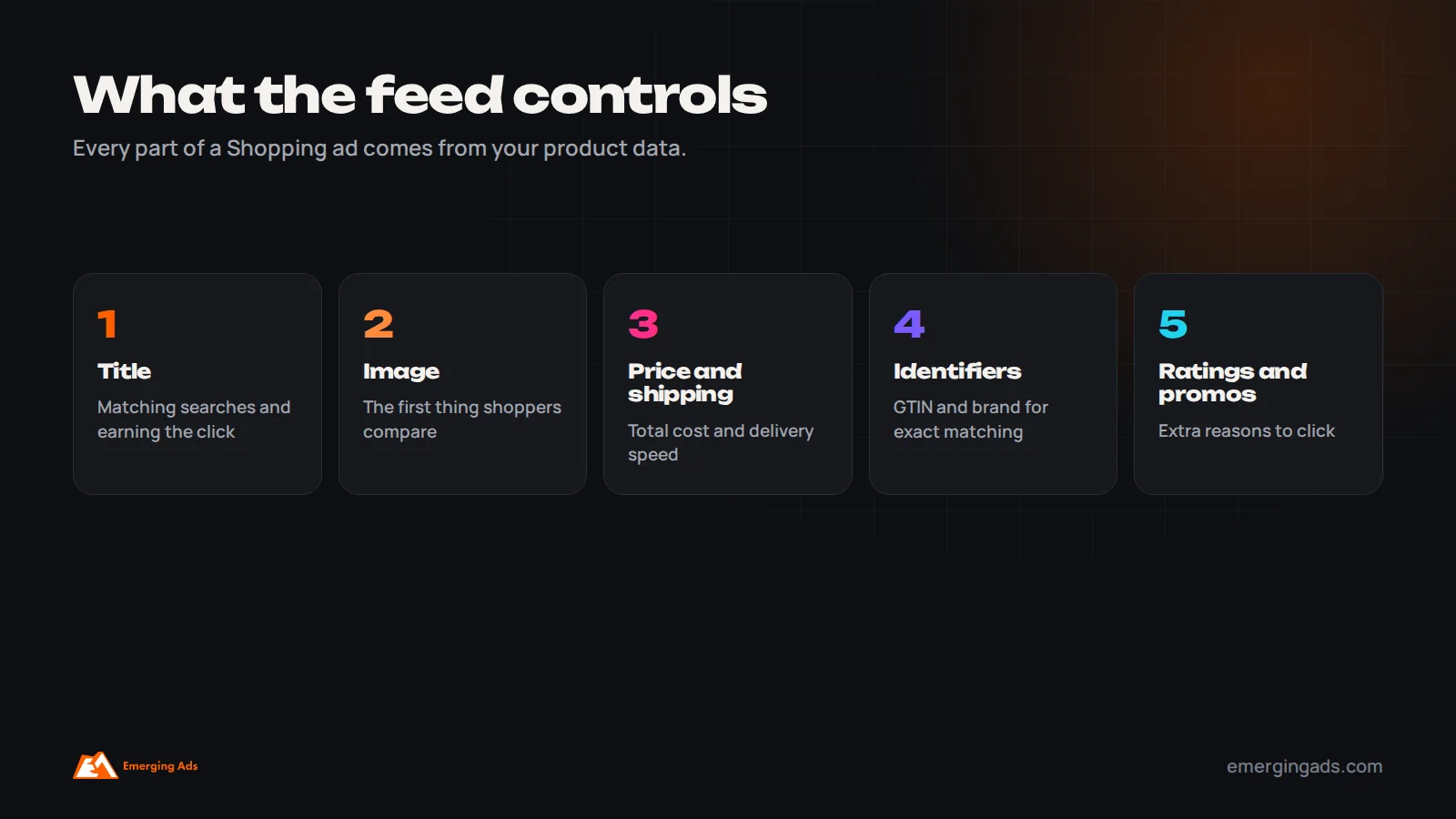
Google Shopping feed optimization means improving the product data you send to Google Merchant Center so your products show for the right searches, earn more clicks and convert better. The changes that matter most are search-friendly product titles, accurate GTINs, brands and categories, high-quality images, correct prices and availability, complete shipping and returns information, custom labels for margin and bestsellers, and fixing disapprovals quickly. In Shopping and Performance Max, your feed does much of the work keywords do in search campaigns.
In a Google search campaign, you choose keywords. In Google Shopping, you do not. Google reads your product feed, decides which searches each product is relevant for, and builds the ad from your title, image and price. That means your feed is your targeting, your ad copy and your landing page promise all at once.
It also means that two stores selling exactly the same product at the same price can see very different results from Shopping, purely because one has a better feed. We see this constantly. Stores with weak feeds blame bids, budgets or Google’s algorithm, when the real problem is that their products are described in a way that does not match how people search.
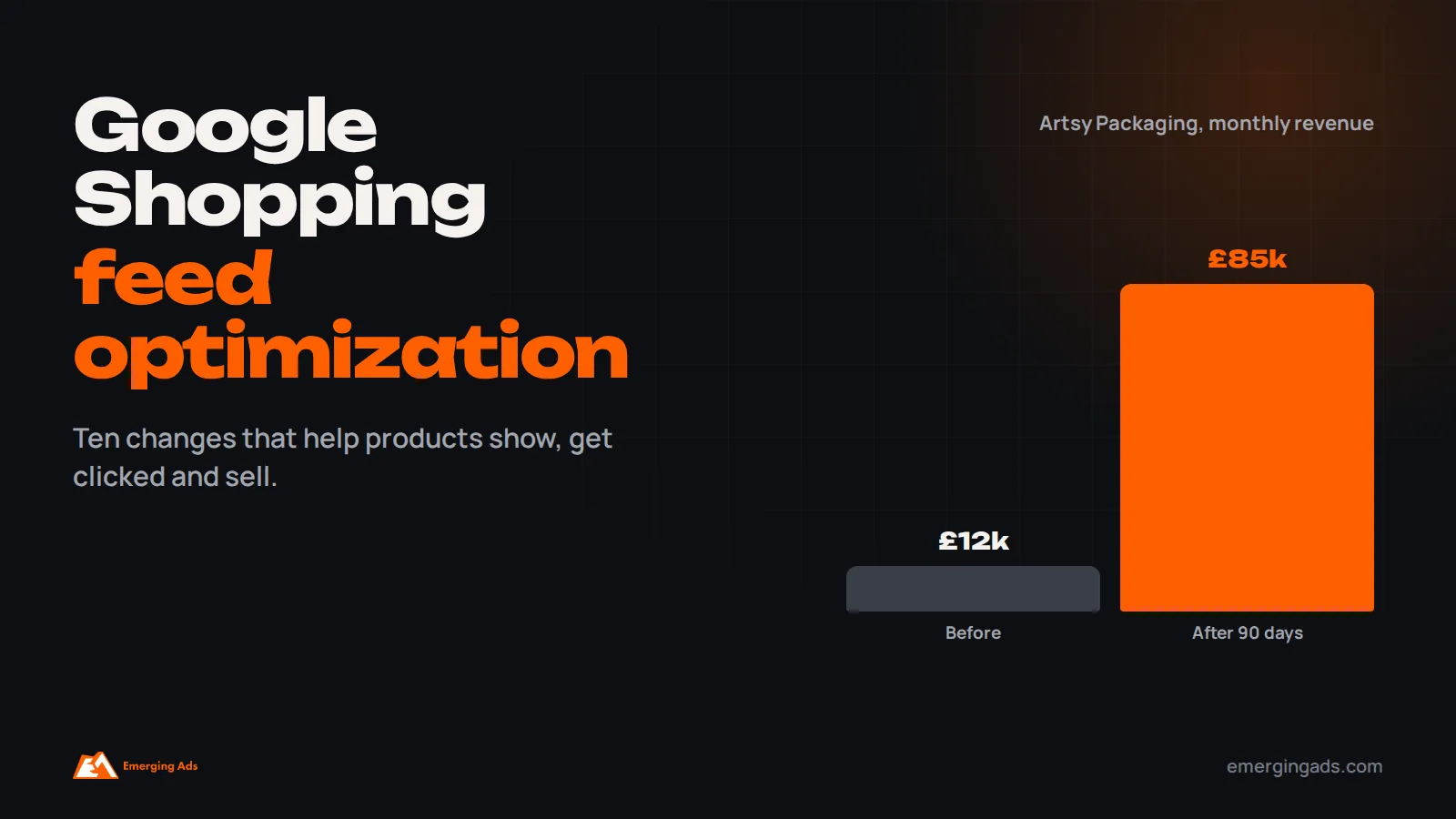
This guide covers the feed improvements we make for Shopping and Performance Max clients, in roughly the order they tend to move results. It draws on accounts such as NetNutri, a US multi-brand supplement store, and Artsy Packaging, a UK packaging brand where launching a proper Shopping feed was part of taking monthly revenue from about £12,000 to £85,000 on the same budget.
How the Shopping feed actually works
Your product feed is a structured list of every product, with attributes such as ID, title, description, link, image link, price, availability, brand, GTIN and condition. It lives in Google Merchant Center, which connects to Google Ads. Most stores create the feed automatically, through Shopify’s Google and YouTube app, a WooCommerce plugin or a feed management tool, so it stays in sync with the website.
When someone searches, Google looks at the feed to decide which products are relevant, then runs an auction among eligible products. The title and product category heavily influence relevance. The image, price, title and extras such as ratings and shipping details influence whether people click. And the landing page, which must match the feed’s price and availability, influences whether they buy.
Google Merchant Center has also been redesigned in recent years, and it now powers free product listings across Google, not just paid ads. A good feed improves both.
1. Write titles the way people search
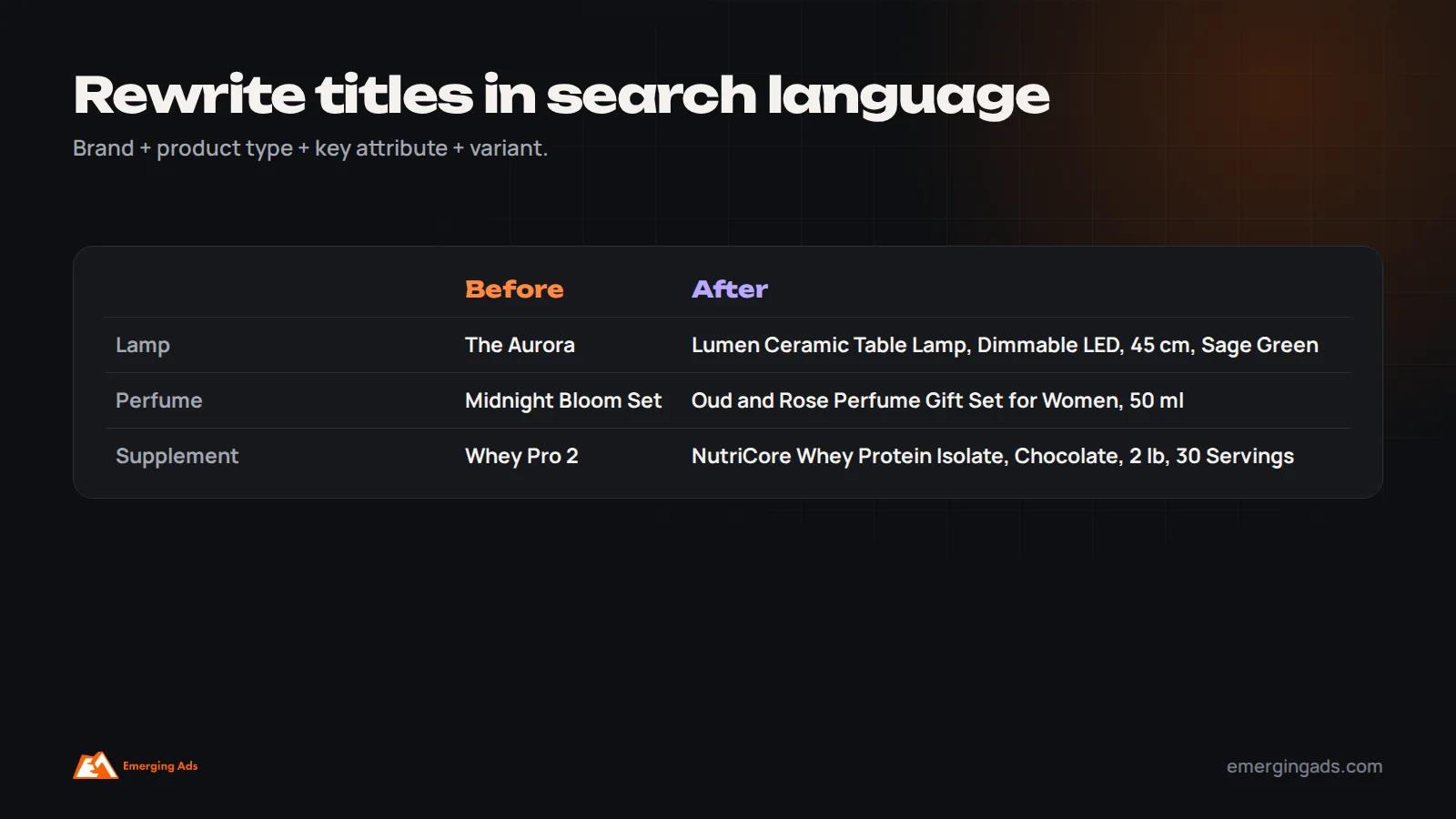
The product title is the single most important attribute you control. Google uses it to match products to searches, and shoppers use it to decide whether to click. Most stores simply send their website product names, which are often written for brand style rather than search, such as “The Aurora” or “Midnight Bloom Set”.
A strong Shopping title puts the most important search terms first, because titles are truncated on many screens. A useful structure for many categories is:
Brand + product type + key attribute + variant (size, color, quantity)
| Before | After |
|---|---|
| The Aurora | Lumen Ceramic Table Lamp, Dimmable LED, 45 cm, Sage Green |
| Midnight Bloom Set | Oud and Rose Perfume Gift Set for Women, 50 ml Eau de Parfum |
| Whey Pro 2 | NutriCore Whey Protein Isolate Powder, Chocolate, 2 lb, 30 Servings |
The best order varies by category. For fashion, brand, gender, product type, color and size often matter most. For electronics, brand and model number come first, because people search for them. For supplements, as on NetNutri, shoppers often search with brand, product, size and count, so titles that include all four match far more searches.
Use Google Ads search terms reports from Shopping and Performance Max to see the exact words people use, and work those words into titles. Avoid keyword stuffing, promotional text such as “Best price!” and all caps, which can lead to disapprovals.
2. Get product identifiers right
GTINs, the barcodes on retail products (UPC in North America, EAN in Europe and many other markets), help Google understand exactly which product you are selling. For branded products sold by many retailers, a correct GTIN lets Google match your product to searches for that exact item and group it with other offers.
- Provide the manufacturer’s GTIN for every product that has one. Do not invent GTINs.
- Always provide the brand. For your own products, your brand name is the brand.
- For products without a GTIN, such as handmade or custom items, provide brand and MPN where possible, or set identifier_exists to false, which tells Google there is no GTIN to expect.
Missing or incorrect identifiers are one of the most common reasons products show for fewer searches than they should.
3. Categorize products accurately
Two attributes describe what a product is. The google_product_category uses Google’s own taxonomy, and Google often assigns it automatically, but you can set it yourself when the automatic choice is wrong. The product_type attribute uses your own category structure, such as “Home > Lighting > Table Lamps”, and is useful for organizing campaigns and reports.
Accurate categories help Google apply the right rules, such as size and color requirements for apparel, and show your products in the right contexts. A detailed product_type also lets you split campaigns or asset groups by category without extra work.
4. Use images that win the click
On a Shopping results page, your image sits next to competitors’ images for the same search. It is often the first thing a shopper notices.
- Use a clear, high-resolution main image of the actual product, usually on a plain white or light background.
- Do not add promotional text, watermarks, borders or logos overlaid on the product, which can cause disapprovals.
- Show the variant in the feed. If the item is the green version, the image should be green.
- Add additional images, including lifestyle shots, through the additional_image_link attribute. These can appear in some placements, particularly in Performance Max.
Test main images where you can. On many accounts, switching from a cluttered lifestyle shot to a clean product image, or the reverse in fashion, changes click-through rate noticeably.
5. Keep price and availability perfectly in sync
Google checks that the price and availability in your feed match your landing page. Mismatches cause disapprovals and, if repeated, account warnings. They also waste money by advertising products shoppers cannot buy.
Use automatic feed syncing from your platform wherever possible, schedule feed updates frequently if you use a file, and enable Merchant Center’s automatic item updates, which can correct price and availability based on your structured data. Use the sale_price attribute with sale_price_effective_date for promotions, so the original price shows as struck through where Google supports it.
6. Fill in shipping, returns and delivery details
Shoppers compare total cost and delivery speed, not just price. Merchant Center lets you set shipping costs, delivery times and return policies at account level or per product. Products with clear free or fast shipping and easy returns can show annotations on Shopping results, which help them stand out.
Make sure what you enter matches your website exactly, including free shipping thresholds and different rates by country. If you ship internationally, set up shipping for each target country and make sure prices are in the right currency.
Handle variants properly
Products that come in several sizes, colors or materials should be submitted as separate items in the feed, each with its own ID, price, availability, image and variant attributes such as color and size, linked together with a shared item_group_id. This lets Google show the exact variant a shopper searched for, such as “black leather ankle boots size 39”, with the right image, and land them on a page with that variant already selected.
Submitting only the parent product, or using one image for every color, means a shopper searching for a specific variant may see the wrong one, click, and leave. Most store integrations handle variants automatically, but check that variant images, prices and landing page URLs are correct, especially after theme or app changes.
7. Write useful descriptions
Descriptions matter less than titles for matching searches, but they still help Google understand the product, and they can appear in some placements. Lead with the most important information: what it is, who it is for, key features, materials, sizes and what makes it different. Avoid copying generic manufacturer text that hundreds of other retailers use, and avoid promotional language and links.
8. Use custom labels to control budget
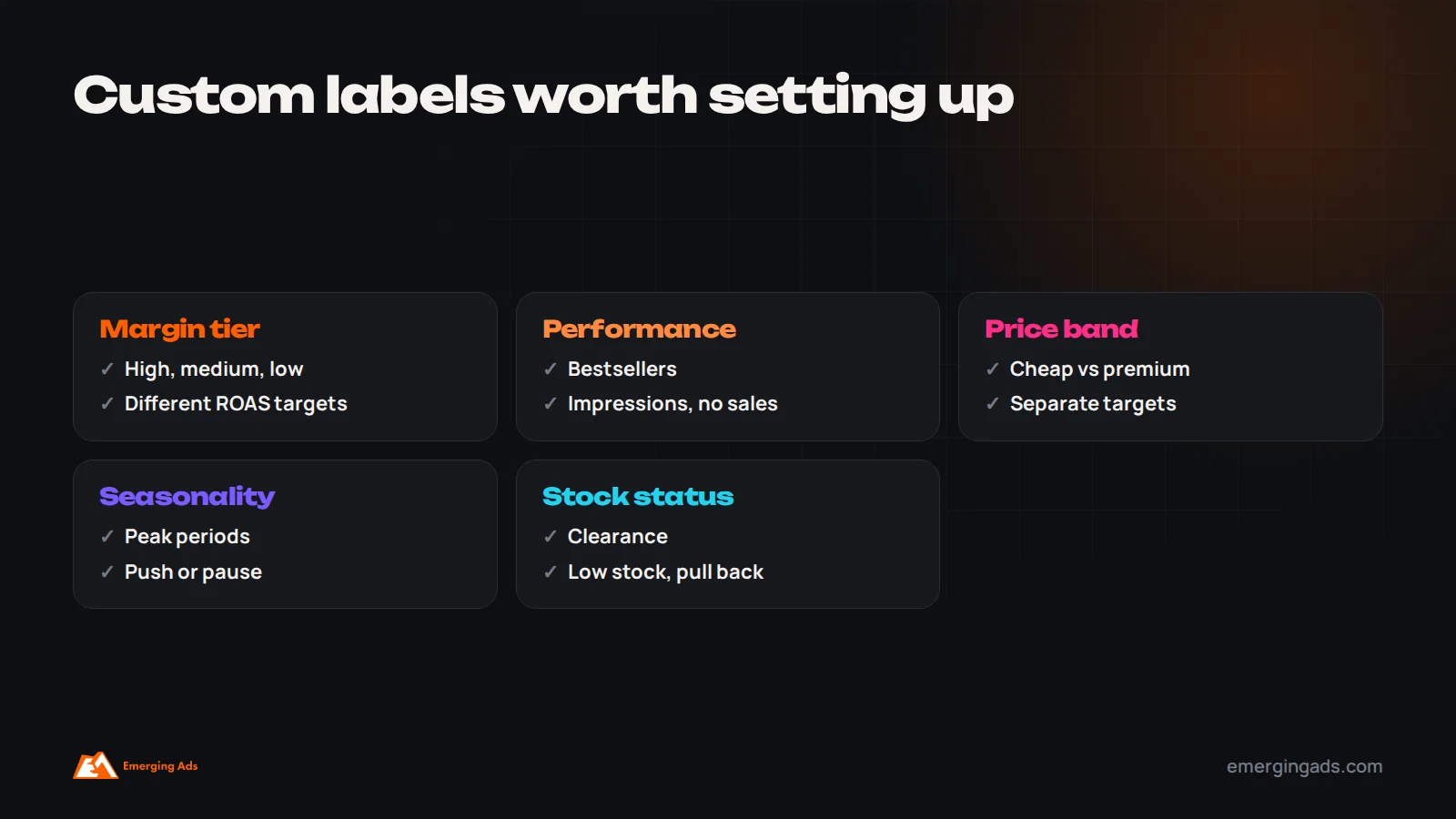
Custom labels, custom_label_0 to custom_label_4, are attributes you define for your own campaign management. Google does not use them for matching. You use them to group products in Shopping campaigns and Performance Max listing groups.
The most useful labels we set up are:
- Margin tier: high, medium or low margin, so budgets and ROAS targets can reflect profitability.
- Performance: bestsellers, average performers and products with impressions but no sales.
- Price band: useful when cheap and expensive products need different targets.
- Seasonality: products that matter at certain times of year.
- Stock or clearance status: to push or pull back spend as inventory changes.
With margin labels in place, you can stop a campaign from spending heavily on low-margin products just because they sell easily. Our Performance Max management work uses these labels to structure campaigns and asset groups.
9. Fix disapprovals and warnings fast
Disapproved products stop showing, often without anyone noticing, because the rest of the campaign keeps running. Check Merchant Center’s diagnostics at least weekly. Common causes include price mismatches, missing identifiers, image problems, missing shipping information and policy issues.
Some categories face stricter policies. On NetNutri, health policies restrict certain supplement ingredients and claims, so feed titles and descriptions have to stay inside the rules or products are disapproved and quietly stop serving. If you sell in a regulated category such as supplements, alcohol, healthcare or financial products, review Google’s policies for that category before writing titles and descriptions.
10. Add ratings, promotions and other enhancements
- Product ratings: if you collect product reviews, sharing them with Google can show star ratings on Shopping ads, which often improves click-through rate. Many review platforms can send reviews to Google automatically.
- Promotions: Merchant Center promotions can show a special offer annotation on eligible products.
- Loyalty and local inventory: where relevant, loyalty pricing and local inventory ads can help stores with member pricing or physical locations.
- Product highlights and details: short bullet points and specification attributes that add useful information.
Supplemental feeds and feed rules
You do not always need to change your website or store platform to improve the feed. Merchant Center supports supplemental feeds, which add or override attributes for products in your main feed, and feed rules, which transform data automatically, such as adding the brand to the start of every title or mapping a product type to a custom label.
A simple supplemental feed in Google Sheets is often the fastest way to improve titles or add custom labels for a priority set of products. For large catalogs, feed management tools offer more powerful rules and multi-channel feeds.
Feeds for several countries and languages
If you sell internationally, each target country needs products in the right language, prices in the local currency and shipping set up for that country. Merchant Center lets you target several countries from one feed where language and currency allow, or use separate feeds per country. Translate titles and descriptions properly rather than relying on machine translation for the most important products, because search language differs by market. A shopper in the UAE may search in Arabic or English, and spelling and product names differ between UK and US English. Make sure landing pages show the same currency and price that the feed advertises, or products will be disapproved for price mismatches.
Do not ignore free listings
Products in Merchant Center can appear in free listings across Google, including the Shopping tab, Google Images and parts of search results, without any ad spend. Free listings use the same feed, so every improvement in this guide helps them too. Make sure free listings are enabled in Merchant Center, and check their performance report alongside paid results. For smaller stores, free listings can be a meaningful source of sales on their own, and they are a useful test of how well your feed matches demand before you spend on ads.
How often to review your feed
A feed is not a one-time project. Products change, Google’s requirements evolve, and search behavior shifts with seasons and trends. A simple routine keeps it healthy: check Merchant Center diagnostics weekly for disapprovals and warnings; review search terms and product performance monthly to update titles for priority products; refresh custom labels when margins, bestsellers or seasons change; and run a fuller review every quarter, covering images, categories, shipping settings and new attributes Google has added. Stores that follow a routine like this rarely face sudden drops caused by mass disapprovals.
Which products to optimize first
On a large catalog, optimizing every product at once is unrealistic. Prioritize by potential:
- Bestsellers and high-margin products, where small improvements produce the most profit.
- Products with impressions but low click-through rate, which usually need better titles, images or prices.
- Products with clicks but no sales, which may need better landing pages, prices or shipping terms rather than feed changes.
- Products with very few impressions, which often have missing identifiers, poor titles or wrong categories.
Use the product-level reports in Google Ads, segmented by item ID, to find each group. Work through the top group first, measure the effect, then move down the list. Small, steady improvements to the products that matter most usually beat a large one-off rewrite of the whole catalog.
How to measure whether feed changes worked
Feed changes take time to show results, because Google needs to reprocess products and gather new data. Compare product-level impressions, click-through rate, conversion rate and conversion value for at least two to four weeks before and after a change, allowing for seasonality. Change titles for a test group of products rather than the whole catalog at once, so you have a comparison.
For Artsy Packaging, cutting search terms that never bought, fixing conversion tracking and launching a Shopping feed together took CPA down 71% and ROAS to 9.2x within 90 days, with no extra ad spend. Not every account will see results that large, but it shows how much a feed can contribute when the rest of the account is fixed alongside it.
Common feed mistakes we fix
These come up in almost every Shopping audit we run. Most take less than a day to fix once they are spotted, and several of them can be fixed with a supplemental feed without touching the store itself.
- Titles copied from the website, with brand style names instead of search terms.
- Missing GTINs or brands on branded products.
- Images with promotional text or watermarks.
- Prices or stock out of sync with the site.
- Shipping costs in Merchant Center that do not match checkout.
- No custom labels, so every product gets the same budget and target.
- Disapprovals left unresolved for weeks.
- Variants submitted as one product, or one image used for every color.
A Shopping feed checklist
- Titles front-load brand, product type and key attributes in search language.
- GTIN, brand and MPN are present and accurate.
- google_product_category and product_type are accurate.
- Main images are clean, high-resolution and match the variant.
- Price, sale price and availability sync automatically.
- Shipping and returns are configured for every target country.
- Custom labels exist for margin, performance and seasonality.
- Merchant Center diagnostics show no significant disapprovals.
- Product ratings and promotions are enabled where eligible.
- A supplemental feed or feed rules exist for ongoing improvements.
If you would like your feed reviewed, our Google Shopping ads team audits and rebuilds feeds as part of every Shopping and Performance Max engagement. If you are setting up a new store, our Shopify store setup service includes Merchant Center from the start. For the wider account, see our guide to lowering Google Ads CPA.
Frequently asked questions
What is Google Shopping feed optimization?
It is the process of improving the product data you send to Google Merchant Center, such as titles, identifiers, categories, images, prices and shipping details, so your products appear for more relevant searches, get more clicks and convert better.
What is the best title format for Google Shopping?
A common structure is brand, product type, key attribute and variant such as size or color, with the most important search terms first. The best order varies by category, so use your search terms reports to guide it.
Do I need GTINs for Google Shopping?
Provide them for every product that has a manufacturer GTIN. For products without one, such as custom or handmade items, provide brand and MPN where possible or set identifier_exists to false.
What are custom labels in Google Merchant Center?
Custom labels are five attributes you define, such as margin tier, bestseller status or seasonality, to group products in Shopping and Performance Max campaigns. Google does not use them for matching searches.
Why are my products disapproved in Merchant Center?
Common reasons are price or availability mismatches with the website, missing identifiers, image problems, missing shipping information and policy issues in restricted categories. Check the diagnostics in Merchant Center for each product.
How long do feed changes take to show results?
Google usually reprocesses changes within a few days, but allow two to four weeks of data to judge their effect on impressions, clicks and sales.
Does feed optimization help Performance Max?
Yes. Performance Max uses your feed for Shopping placements, which usually account for a large share of its results, so better titles, images and labels improve Performance Max directly.
Can I improve my feed without changing my website?
Yes. Merchant Center supplemental feeds and feed rules let you add or change attributes, such as titles and custom labels, without editing products on your store.